
Integrations
Authentication
User auth, OAuth (Google, GitHub), API keys. Backend: node1-auth-service.
Last updated Mar 19, 2026
Authentication is handled by node1-auth-service. It supports email/password, Google OAuth, GitHub OAuth, guest login, and API keys.
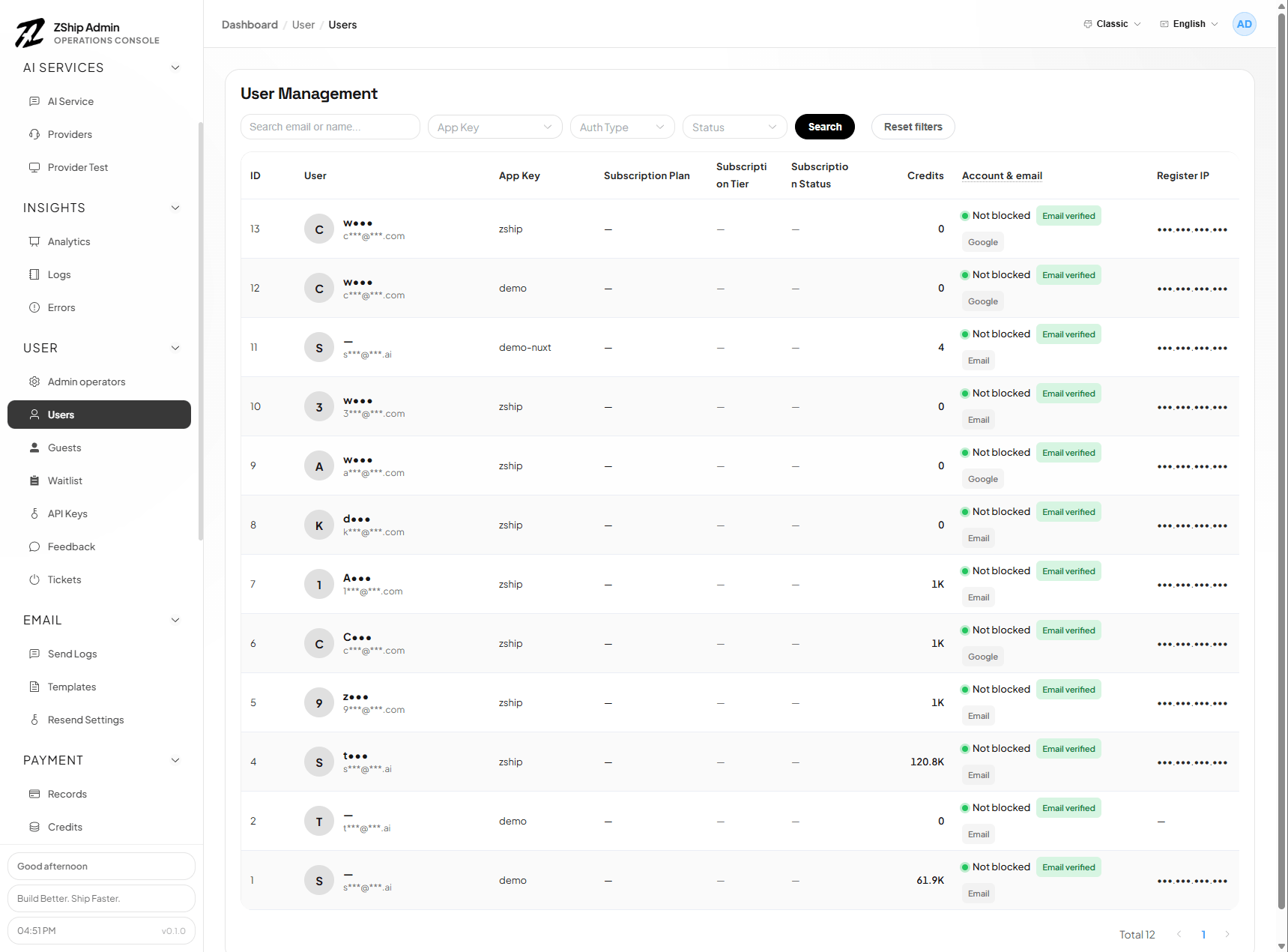
Email & password
Configured via Admin. Users register and log in with email via verification code or magic link.
Google OAuth
- Create a Google OAuth client in Google Cloud Console
- In Google Console, add your frontend domain to Authorized JavaScript origins (e.g.
https://your-domain.com) — Google uses popup mode, no redirect callback needed - Log in to Admin → Projects → select your project → OAuth Providers
- Enable Google, paste the Client ID, save
GitHub OAuth
Enable "Continue with GitHub" login:
1. Create a GitHub OAuth App
- Go to GitHub Developer Settings → OAuth Apps
- Click New OAuth App
- Fill in:
- Application name: Your app name
- Homepage URL: Your app URL (e.g.
https://app.zship.ai) - Authorization callback URL:
https://{your-domain}/auth/callback
- Copy Client ID and Client Secret
2. Configure in Admin Panel
- Log in to admin
- Go to Projects → select your project → OAuth Providers
- Enable GitHub, paste Client ID and Client Secret
- Save
The "Continue with GitHub" button will appear on the login page.
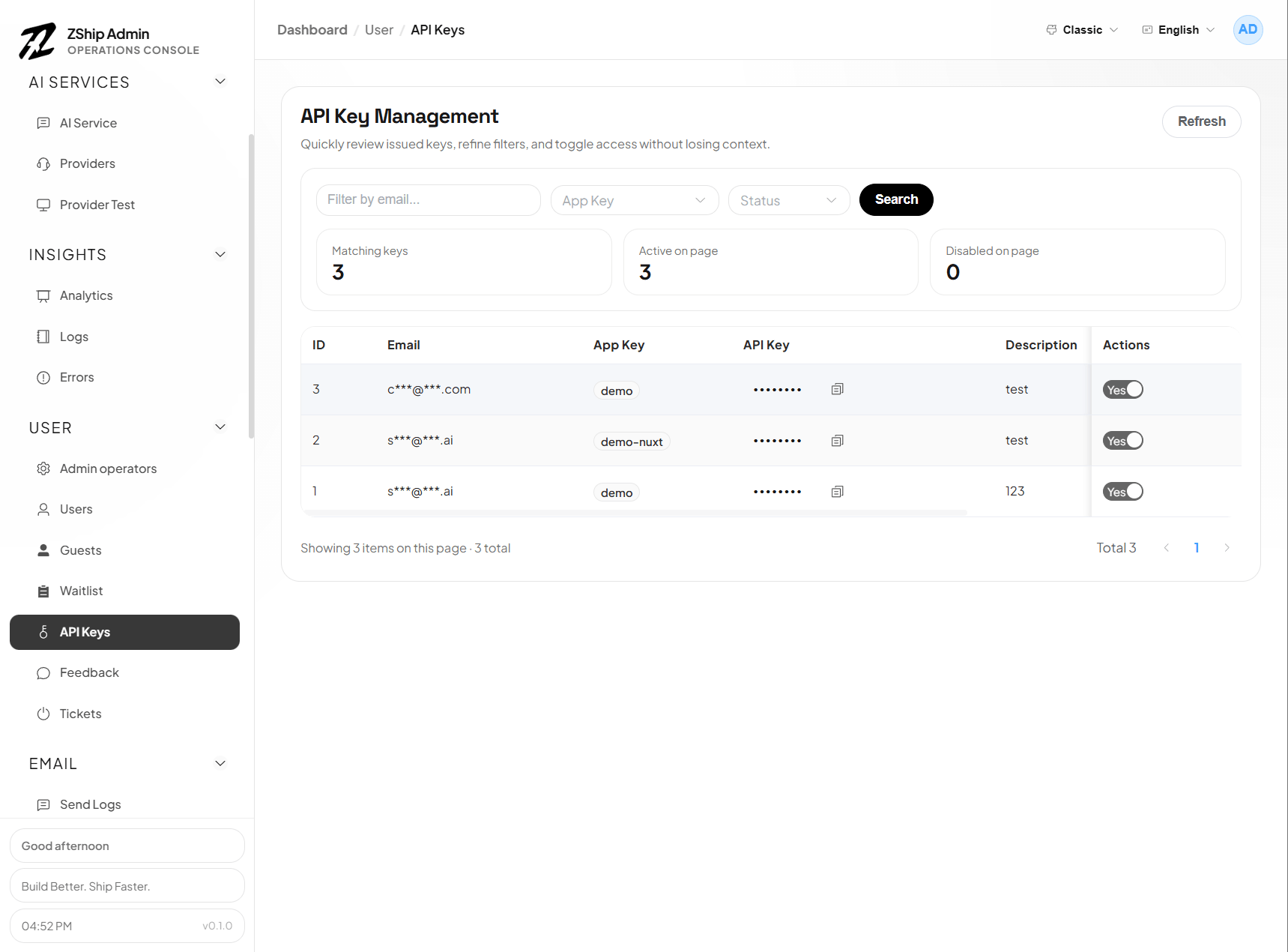
API keys
Users can create API keys in the dashboard. Keys are stored in node1-auth and used for programmatic access (e.g. AI gateway).
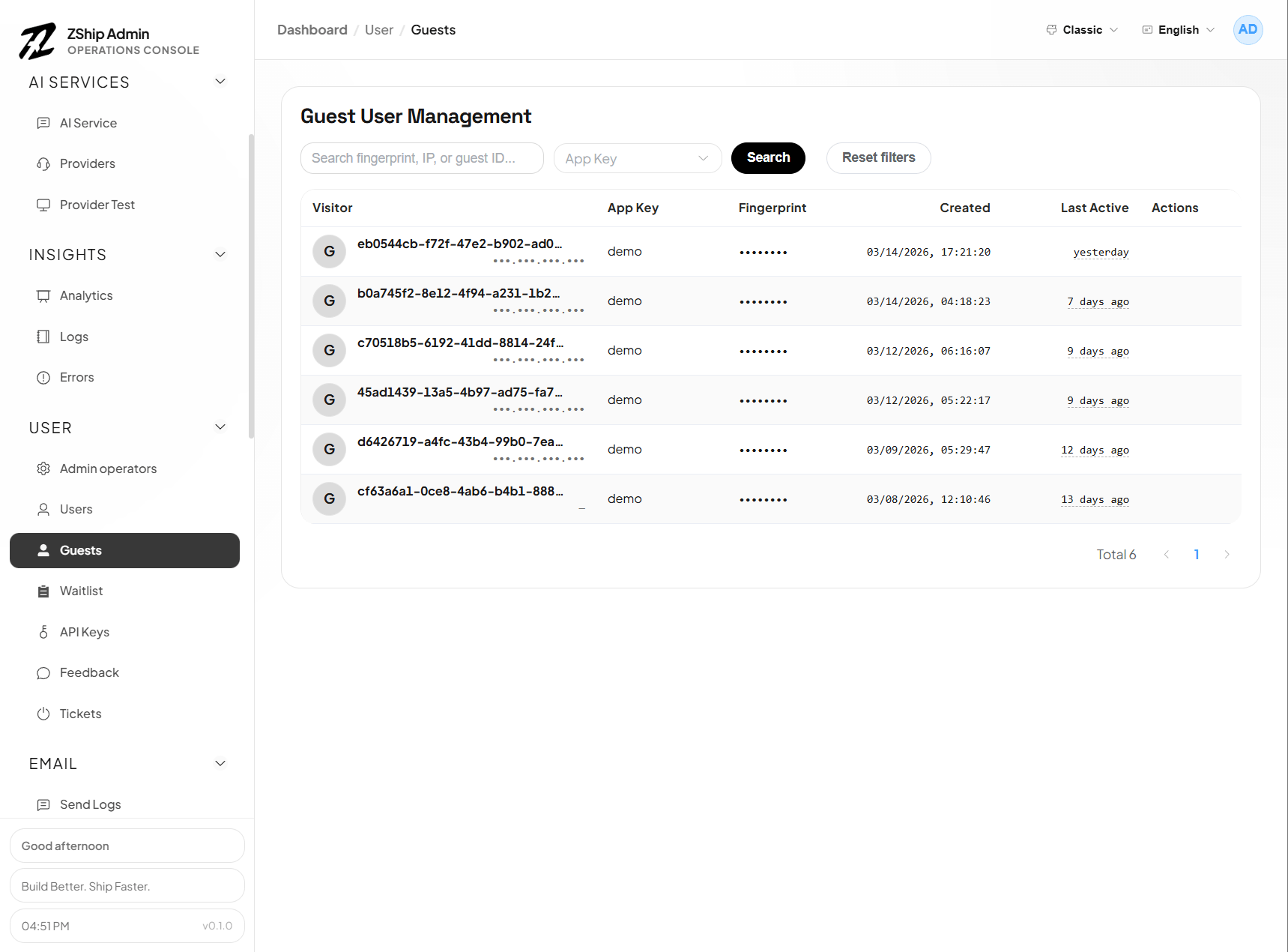
Guest mode
Optional guest (anonymous) sessions for trying the product before full registration.
Admin pages
- Users (
/users) — User list, credit adjustments - Credits (
/credits) — Credit management