
04. Deploy Frontend Apps
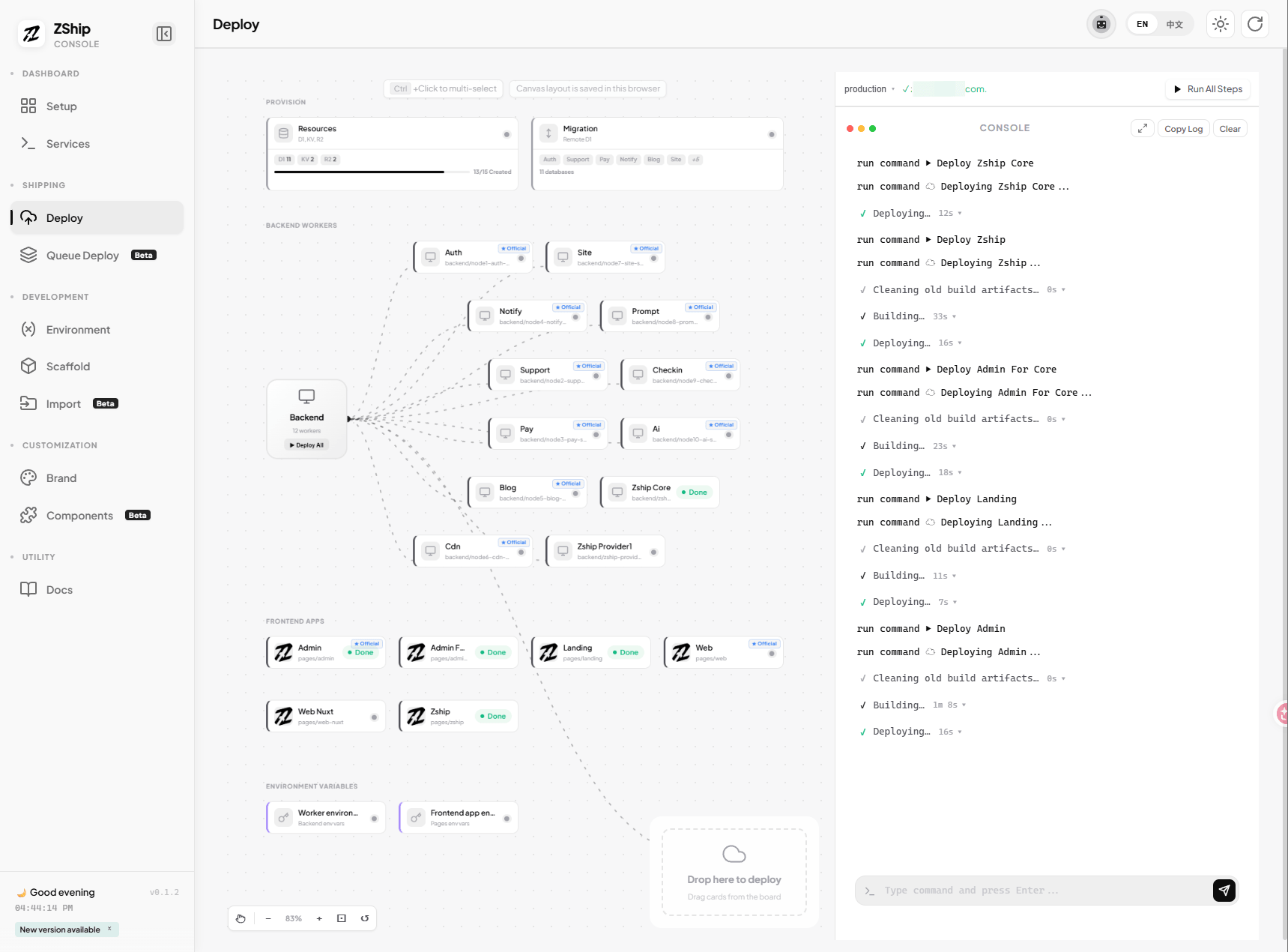
Use Dev Console to deploy apps/web-astro as a Worker and apps/admin as a Pages project.
Last updated Mar 19, 2026
Path B (Dev Console) — This chapter is for the Dev Console workflow. If you prefer CLI commands, see Path A: Deploy Frontend Apps.
Deploy the core frontend apps only: apps/web-astro and apps/admin. The Dev Console follows each app's config: apps/web-astro deploys to the web Worker, and apps/admin deploys to the admin Pages project.
1. Deploy via Dev Console pipeline
In Dev Console → Deploy tab → Pipeline:
- Ensure backend deployment (step 3) is complete.
- Run step 5 (Deploy Frontend). The Dev Console will build and deploy both
webandadminin sequence. - Or use the canvas: click the Build & Deploy button on each frontend app card (
web,admin).
2. Configure frontend environment variables
After the first deployment:
- In Dev Console → Deploy tab → Frontend Cloud Env or Environment section.
- Set
apps/web-astroto point to:- Correct backend service URLs
ZSHIP_KEYif you use public HTTP fallback instead of Service Bindings- Any required public environment values for login or site configuration
- Set
apps/adminto point to auth-related URLs and service endpoints.
Use repository defaults first, verify the system works, then customize.
3. If you see a SESSION binding warning
A warning about an invalid SESSION binding usually means the Cloudflare KV binding is not configured yet:
- Check the Wrangler binding configuration
- Check Cloudflare Pages or Worker environment bindings
- Ensure the target environment matches the one you prepared earlier
4. Checklist before you leave this chapter
- [ ]
apps/web-astroWorker deployed successfully - [ ]
apps/adminPages project deployed successfully - [ ] Critical frontend environment variables are filled
- [ ] SESSION warning understood and resolved if it was real
Once those are done, you can move on to domains and production URLs.